
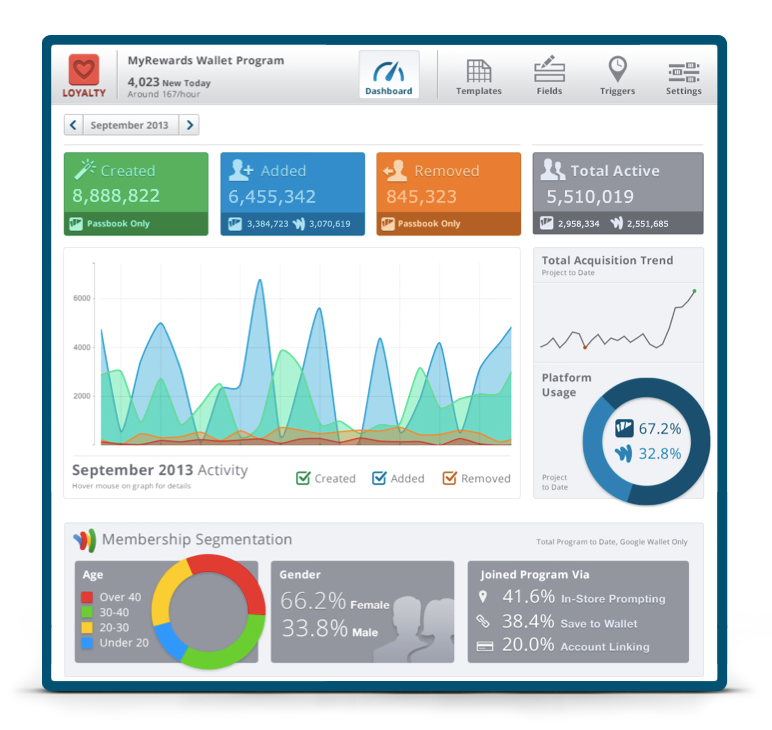
How to Create Stunning Data Visualizations with Tableau
In the world of data science, numbers alone don’t tell the whole story. To transform raw data into actionable insights, you need to communicate findings in a way that’s clear, compelling, and engaging. This is where data visualization comes in, and few tools do it better than Tableau. As one of the leading platforms for creating interactive and visually stunning dashboards, Tableau empowers data scientists, analysts, and business professionals to tell stories with data. According to a 2024 Gartner report, Tableau remains a top choice for business intelligence and analytics, used by over 70% of Fortune 500 companies.
Whether you’re a beginner looking to break into data science or an analyst aiming to elevate your reporting, this guide will walk you through creating stunning visualizations in Tableau. We’ll cover everything from connecting to data and building basic charts to designing impactful dashboards and mastering data storytelling. With practical examples, step-by-step instructions, and best practices, you’ll be ready to create visualizations that captivate and inform your audience. Let’s dive in and unlock the power of Tableau!
Why Tableau for Data Visualization?
Tableau is a powerful, user-friendly platform that allows you to create interactive visualizations and dashboards without needing advanced coding skills. Its drag-and-drop interface, robust feature set, and integration with various data sources make it a favorite among data professionals. Here’s why Tableau stands out:
- Ease of Use: Tableau’s intuitive interface lets beginners create professional visualizations with minimal training.
- Interactivity: Dashboards allow users to filter, drill down, and explore data dynamically.
- Versatility: Connects to databases (e.g., SQL Server, Google BigQuery), spreadsheets (Excel, CSV), and cloud platforms (AWS, Azure).
- Community and Resources: A vibrant Tableau Community, with forums, tutorials, and public dashboards, supports learning and inspiration.
- Storytelling: Tableau’s features, like stories and dashboards, help craft narratives that resonate with stakeholders.
For aspiring data scientists, mastering Tableau is a valuable skill that bridges technical analysis and business communication. Let’s get started with the basics.
Getting Started with Tableau
Before creating stunning visualizations, you need to set up Tableau and understand its core components. This section provides a beginner-friendly introduction to the platform.
Step 1: Install Tableau
Tableau offers several versions:
- Tableau Public: Free, ideal for beginners, with the caveat that dashboards are publicly shared.
- Tableau Desktop: Paid, for professional use with advanced features.
- Tableau Online: Cloud-based for collaboration and sharing.
Action Item: Download Tableau Public from tableau.com to follow along with this guide.
Step 2: Understand Tableau’s Interface
Once installed, open Tableau Public. You’ll see:
- Data Pane: Where you connect to data sources and view fields (columns).
- Shelves and Cards: Areas like Rows, Columns, Filters, and Marks where you drag fields to build visualizations.
- Show Me: A panel suggesting visualization types based on your data.
- Worksheet: The canvas for creating individual charts.
- Dashboard: A collection of worksheets for interactive storytelling.
- Story: A sequence of visualizations to present a narrative.
Step 3: Connect to a Sample Dataset
For this tutorial, we’ll use a sample dataset, such as the Superstore dataset (available in Tableau Public or downloadable from Kaggle as a CSV). This dataset includes sales data with fields like Order Date, Sales, Profit, Category, and Region.
Steps:
- Open Tableau Public.
- Click Connect > Text File and select the Superstore CSV.
- Preview the data in the Data Source tab to ensure fields are correctly typed (e.g., dates, numbers).
Tip: If you don’t have a dataset, download the Superstore dataset from Tableau’s website or use a Kaggle dataset like Retail Sales.
Building Your First Visualization
Let’s create a simple visualization to get comfortable with Tableau’s interface. Our goal is to visualize sales by product category using a bar chart.
Step 1: Create a Bar Chart
- In a new worksheet, drag the Category field to the Columns shelf.
- Drag the Sales field to the Rows shelf.
- Tableau automatically generates a bar chart showing total sales by category.
- Use the Show Me panel to confirm the bar chart type or experiment with other options (e.g., line chart).
Step 2: Customize the Visualization
- Add Labels: Drag Sales to the Label mark to display values on each bar.
- Format Colors: Click the Color mark and choose a palette (e.g., blue for consistency).
- Sort: Click the Sales axis and select Sort Descending to order bars by sales amount.
Step 3: Add Filters
- Drag Region to the Filters shelf and select a specific region (e.g., West) to focus the visualization.
- Click the filter dropdown and choose Show Filter to make it interactive for users.
Result: You now have a bar chart showing sales by category, filtered by region, with clear labels and colors.
Action Item: Create a similar chart with the Superstore dataset, experimenting with different fields like Sub-Category or Profit.
Creating Impactful Dashboards
A dashboard combines multiple visualizations into a single, interactive view, making it ideal for presenting insights to stakeholders. Let’s build a Sales Performance Dashboard using the Superstore dataset.
Step 1: Plan Your Dashboard
Before building, define your goals:
- Audience: Sales managers.
- Objective: Show sales trends, top products, and regional performance.
- Visualizations:
- Bar chart: Sales by category.
- Line chart: Sales over time.
- Map: Sales by region.
- Table: Top 10 products by profit.
Step 2: Create Individual Worksheets
- Bar Chart (Sales by Category): Follow the steps above.
- Line Chart (Sales Over Time):
- Drag Order Date to Columns (set to Month or Year).
- Drag Sales to Rows.
- Choose Line from the Show Me panel.
- Map (Sales by Region):
- Drag State to the canvas (Tableau recognizes geographic fields).
- Drag Sales to Size or Color to visualize sales magnitude.
- Select Map from Show Me.
- Table (Top 10 Products):
- Drag Product Name to Rows.
- Drag Profit to Columns.
- Sort descending and filter to show the top 10 (use the Filters shelf).
Step 3: Build the Dashboard
- Click New Dashboard in Tableau.
- Drag the four worksheets into the dashboard canvas.
- Arrange visualizations logically (e.g., map on the left, charts on the right).
- Add interactivity:
- Use a filter (e.g., Region) as a dashboard filter to sync all visualizations.
- Add a Year filter to allow users to select specific time periods.
- Customize the layout:
- Add a title (e.g., “Superstore Sales Performance Dashboard”).
- Use containers to organize visualizations neatly.
- Adjust sizes and spacing for clarity.
Step 4: Test and Refine
- Test interactivity by clicking filters or regions on the map.
- Ensure labels and colors are consistent across visualizations.
- Save the dashboard to Tableau Public or export as an image/PDF.
Result: A professional, interactive dashboard that tells a cohesive story about sales performance.
Action Item: Build a similar dashboard with the Superstore dataset, experimenting with different chart types or filters.
Best Practices for Creating Stunning Visualizations
To make your Tableau visualizations stand out, follow these best practices for design, functionality, and storytelling:
1. Keep It Simple and Focused
Why It Matters: Cluttered visualizations overwhelm viewers and obscure insights.
How to Do It:
- Limit Visuals: Use 3–5 visualizations per dashboard to maintain focus.
- Avoid Overloading: Don’t cram too many data points into a single chart (e.g., limit bar charts to 5–10 categories).
- Use Clear Titles: Label charts and dashboards with descriptive, concise titles (e.g., “Monthly Sales by Region”).
Example: Instead of showing all 50 states in a map, filter to the top 10 by sales to highlight key regions.
2. Choose the Right Chart Type
Why It Matters: The wrong chart can confuse or mislead your audience.
How to Do It:
- Bar Charts: Compare categories (e.g., sales by product).
- Line Charts: Show trends over time (e.g., sales growth).
- Maps: Visualize geographic data (e.g., sales by state).
- Pie Charts: Use sparingly for proportions (e.g., market share).
- Tables: Display detailed data or rankings.
Tip: Use Tableau’s Show Me panel to explore chart options, but verify they suit your data and audience.
3. Design for Visual Appeal
Why It Matters: Aesthetically pleasing visualizations engage viewers and enhance credibility.
How to Do It:
- Consistent Colors: Use a limited color palette (e.g., Tableau’s default or custom brand colors).
- Highlight Key Data: Use bold colors or sizes to emphasize important insights.
- Clean Formatting: Remove unnecessary gridlines, borders, or background images.
- Font Choices: Use readable fonts like Arial or Calibri for labels and titles.
Example: In a sales dashboard, use blue shades for positive metrics (sales, profit) and red for negative (losses).
4. Prioritize Interactivity
Why It Matters: Interactive dashboards let users explore data, increasing engagement and understanding.
How to Do It:
- Add Filters: Allow users to filter by time, region, or category.
- Use Actions: Enable clicking a chart to filter others (e.g., clicking a region on a map updates a bar chart).
- Include Tooltips: Hover-over tooltips provide additional details without cluttering the view.
Example: Add a Category filter to let users switch between Furniture, Technology, and Office Supplies in your dashboard.
5. Tell a Story with Data
Why It Matters: Effective visualizations don’t just show data—they tell a story that drives action.
How to Do It:
- Define the Narrative: Start with a clear question or goal (e.g., “Which regions drive the most profit?”).
- Guide the Viewer: Use titles, annotations, and layout to lead the audience through the story.
- Highlight Insights: Emphasize key findings with annotations or bold visuals.
- Use Stories: Create a Tableau Story to present a sequence of visualizations with commentary.
Example: A story showing declining sales in one region, followed by a visualization of contributing factors (e.g., low customer retention), guides managers to actionable solutions.
Action Item: Practice storytelling by creating a Tableau Story with 2–3 slides explaining a key insight from the Superstore dataset.
Advanced Tableau Techniques for Data Science
Once you’re comfortable with the basics, these advanced techniques will elevate your visualizations:
1. Calculated Fields
Create custom metrics using Tableau’s calculation language. For example, calculate profit margin:
- Go to Analysis > Create Calculated Field.
- Enter: SUM([Profit]) / SUM([Sales]) and name it Profit Margin.
- Drag Profit Margin to your visualization for deeper insights.
Use Case: Show profit margins by product category to identify high-margin items.
2. Parameters
Parameters allow users to dynamically adjust visualizations. For example, create a parameter to adjust a sales threshold:
- Create a parameter (e.g., Sales Threshold) with values from 1,000 to 10,000.
- Use it in a calculated field: IF [Sales] > [Sales Threshold] THEN ‘High’ ELSE ‘Low’ END.
- Add the parameter to your dashboard for interactivity.
Use Case: Let users adjust a threshold to highlight top-performing products.
3. Level of Detail (LOD) Calculations
LOD calculations allow you to compute values at different granularities. For example, calculate average sales per customer:
- Create a calculated field: {FIXED [Customer ID]: AVG([Sales])}.
- Use it to compare individual customer sales to the average.
Use Case: Identify customers with above-average spending for targeted marketing.
4. Blending Data
Combine multiple data sources in Tableau for richer insights. For example, blend sales data with demographic data:
- Connect to a second data source (e.g., a CSV with demographic info).
- Use a common field (e.g., Region) to blend the data.
- Create visualizations combining both datasets.
Use Case: Analyze how regional demographics correlate with sales trends.
Action Item: Try one advanced technique (e.g., a calculated field) in your Superstore dashboard and document the process.
Real-World Applications of Tableau in Data Science
Tableau’s versatility makes it invaluable across industries. Here are examples of how data scientists use Tableau:
- Retail: Create dashboards to track sales, inventory, and customer behavior, helping optimize stock levels.
- Healthcare: Visualize patient outcomes by region or treatment type to inform hospital resource allocation.
- Finance: Build dashboards to monitor fraud patterns or investment performance, aiding risk management.
- Marketing: Analyze campaign performance by channel, guiding budget allocation.
Example: A retail data scientist uses Tableau to create a dashboard showing sales by region, with filters for product categories and time periods, helping executives identify underperforming markets.
Getting Started with Tableau: A Roadmap
Ready to master Tableau? Follow this roadmap to build your skills:
1. Learn the Basics
- Resources:
- Tableau’s free training videos at tableau.com/learn.
- DataTech Academy’s Tableau for Data Science course.
- Practice: Create 3–5 simple visualizations (bar, line, map) with a sample dataset.
2. Build a Portfolio
- Create 2–3 dashboards with the Superstore dataset or Kaggle datasets (e.g., Retail Sales, COVID-19 Data).
- Host your dashboards on Tableau Public and include them in your GitHub portfolio.
3. Explore Advanced Features
- Learn calculated fields, parameters, and LOD calculations through Tableau’s community forums or blogs like Tableau Public’s Viz of the Day.
- Experiment with blending data from multiple sources.
4. Join the Community
- Engage with the Tableau Community on forums, Twitter, or local meetups.
- Participate in #MakeoverMonday, a weekly challenge to redesign visualizations.
Action Item: Build a dashboard with the Superstore dataset and share it on Tableau Public, then tweet it with #Tableau and #DataTechAcademy.
Common Challenges and How to Overcome Them
- Slow Performance: Optimize data sources by filtering early or using extracts instead of live connections.
- Complex Data Sources: Clean data in Python or SQL before importing to Tableau to simplify workflows.
- Overcomplicated Dashboards: Stick to 3–5 visualizations and test with users to ensure clarity.
- Learning Curve: Start with simple charts and gradually explore advanced features like LOD calculations.
Tip: Use Tableau’s Help menu or community forums to troubleshoot issues.
Conclusion: Tell Compelling Stories with Tableau
Tableau is more than a visualization tool—it’s a platform for turning data into stories that drive action. By mastering its drag-and-drop interface, best practices, and advanced techniques, you can create stunning, interactive dashboards that captivate stakeholders and showcase your data science skills. Whether you’re analyzing sales trends, exploring customer behavior, or informing strategic decisions, Tableau empowers you to communicate insights effectively.
Your journey to mastering Tableau starts with practice and creativity. Download Tableau Public, experiment with a dataset, and build your first dashboard today. As you grow, leverage the Tableau Community, advanced features, and real-world projects to elevate your visualizations. With Tableau in your toolkit, you’re ready to tell stories that make data come alive.
Next Steps:
- Download Tableau Public and create a bar chart with the Superstore dataset.
- Build a simple dashboard with 2–3 visualizations and share it on Tableau Public.
- Join the Tableau Community and participate in a #MakeoverMonday challenge.
The world of data visualization is waiting—start creating stunning dashboards with Tableau today!